|
Production Source |
Select whether to display production charts including
either of the following:
Single Stream a bubble of relative size showing a single fluid.
Pie a proportional
pie chart to the right of which you specify which fluids to include.
From the drop-down list to the right of the chart display
type radio buttons, select the production stream. |
| Scaling |
Specify that the Show Map symbols increase or decrease as you zoom in or out, and then type a reference scale increment. |
| Time Slice |
For both the Range Start and the Range End, select the increment after initial production or before final production to display, or specify an absolute date. |
| Fluids and Color (Pie Production Source) |
Select whether to display a production fluid in the pie chart. Drag the transparency slider to the left or right depending on whether you want to decrease or increase (respectively) the color saturation. Click the drop-down list and select either the Palette or Named tab and click the desired color. To change the opacity, click  , and then drag the slider as depicted. , and then drag the slider as depicted.
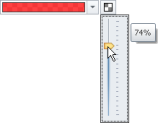 Use the Outline feature to show a bubble outline when you set the bubble fill to full transparency. Use the Outline feature to show a bubble outline when you set the bubble fill to full transparency. |
| Shapes and Color (Single Stream Production Source) |
Select the shape, file, and outline to denote the mode and fluid type. |
| Bubble Properties |
Type the min max size for the bubbles.
Select either of the following:
Discrete - where the underlying wells are split evenly into quartiles when you click Get Limits.
Continuous - where the underlying wells are split into min/max. Continuous is used to more faithfully represent the underlying production data.
Square Root Proportionate - gives a more realistic relative sizing.
To automatically populate these fields with actual production data from the underlying wells, click Get Limits below. Type values with which to override the Get Limits values in order to control the weighting given to different levels of production. To view the wells and production in a tabular format, click Prove Limits below. |
Color drop-down list (Single Stream Production Source)
|
Click the drop-down list and select either the Palette or Named tab and click the desired color. To change the opacity, click , and then drag the slider as depicted.
|
| Fold amounts... | Ignore amounts... |
Select whether to
ignore values outside the cutoff range specified above, or to automatically
include them in the lowest or highest cutoff depending on which their value is closest to. |
| Prove Limits |
This button appears after you click the Get
Limits button above. Click to launch the Prove Limits dialog box where you view the actual values on a well by well basis and save selected wells to either a well list or to Microsoft Excel. |
| Get Limits |
Click to calculate the largest and smallest values for
the wells you selected in the Zone
of Interest tab. The values are written to the Bubble Ranges fields for either Discrete or Continuous bubbles and can be overridden by an alternate value you type. |
 Related Topics